
Category: Notion

  • รวมคีย์ลัด Notion ทำงานให้โปร

    รวมคีย์ลัด Notion ทำงานให้โปร

    รวมคีย์ลัดใน Notion แบ่งตามระบบปฏิบัติการ Mac Windows และ Linux

    หมวดหมู่คำสั่งMacWindows/Linux
    ค้นหาและนำทางค้นหาในหน้าcmd + Fctrl + F
    เปิดการค้นหาหรือเปลี่ยนไปหน้าที่เพิ่งดูcmd + P หรือ cmd + Kctrl + P หรือ ctrl + K
    คัดลอกลิงก์ของหน้าcmd + Lctrl + L
    ย้อนกลับไปหน้าที่แล้วcmd + [ctrl + [
    ไปข้างหน้าอีกหน้าcmd + ]ctrl + ]
    ไปหน้าก่อนหน้าใน peek viewctrl + shift + Kctrl + K
    ไปหน้าถัดไปใน peek viewctrl + shift + Jctrl + J
    สลับโหมดมืด/สว่างcmd + shift + Lctrl + shift + L
    หน้าต่างและแท็บสร้างหน้าขึ้นใหม่cmd + Nctrl + N
    เปิดหน้าต่างใหม่ของ Notioncmd + shift + Nctrl + shift + N
    เปิดลิงก์ในแท็บใหม่cmd + clickctrl + click
    สร้างแท็บใหม่ใน Notioncmd + Tctrl + T
    เปิดหน้าในหน้าต่างใหม่option + shift + clickไม่มี
    แก้ไขข้อความตัวหนาcmd + Bctrl + B
    ตัวเอียงcmd + Ictrl + I
    ขีดฆ่าcmd + shift + Sctrl + shift + S
    โค้ดในบรรทัดcmd + Ectrl + E
    ลิงก์ข้อความcmd + Kctrl + K
    ขีดเส้นใต้cmd + Uctrl + U
    การสร้างและรายการสร้างหัวข้อ H1/h1 หรือ /#/h1 หรือ /#
    สร้างหัวข้อ H2/h2 หรือ /##/h2 หรือ /##
    สร้างหัวข้อ H3/h3 หรือ /###/h3 หรือ /###
    สร้างรายการจุด/bullet หรือ *, -, + แล้วเว้นวรรค/bullet หรือ *, -, + แล้วเว้นวรรค
    สร้างรายการเลข/num หรือ 1., a., i. แล้วเว้นวรรค/num หรือ 1., a., i. แล้วเว้นวรรค
    สร้างรายการเช็กลิสต์/todo หรือ [] แล้วเว้นวรรค/todo หรือ [] แล้วเว้นวรรค
    มีเดียเพิ่มรูปภาพ/image/image
    เพิ่มวิดีโอ/video/video
    เพิ่มไฟล์เสียง/audio/audio
    เพิ่มไฟล์/file/file
    การปรับแต่งบล็อกคัดลอกบล็อก/duplicate/duplicate
    ย้ายบล็อก/moveto/moveto
    ลบบล็อก/delete/delete
    สร้างสารบัญ/toc/toc
    เปลี่ยนประเภทบล็อก/turn/turn
    การใช้ @ คำสั่งเมนชันบุคคล@ชื่อบุคคล@ชื่อบุคคล
    ลิงก์ไปยังหน้า@ชื่อหน้า@ชื่อหน้า
    เพิ่มวันที่@วันที่ หรือ /date@วันที่ หรือ /date
    คำสั่ง [[ และ +ลิงก์ไปยังหน้า[[ชื่อหน้า]] หรือ +ชื่อหน้า[[ชื่อหน้า]] หรือ +ชื่อหน้า
    สร้างหน้าลูก[[ชื่อหน้าลูก]][[ชื่อหน้าลูก]]
    คีย์ลัดขั้นสูงขยาย/ยุบ toggle ทั้งหมดcmd + option + Tctrl + alt + T
    เลื่อนบล็อกcmd + shift + ลูกศรctrl + shift + ลูกศร
    ซูมเข้า/ซูมออกcmd + + / cmd + -ctrl + + / ctrl + -
    กลับไปยังหน้าหลักในลำดับชั้นของหน้าcmd + shift + Uctrl + shift + U
    สร้าง commentcmd + shift + Mctrl + shift + M
    Markdown styleตัวหนา**ข้อความ****ข้อความ**
    ตัวเอียง*ข้อความ**ข้อความ*
    ขีดฆ่า~ข้อความ~~ข้อความ~
    โค้ดในบรรทัดข้อความข้อความ
    แทรกเส้นคั่น------
    การสร้าง inlineใช้ emoji:ชื่ออีโมจิ เช่น :apple:ชื่ออีโมจิ เช่น :apple
    ใช้ emoji pickerctrl + cmd + spacewindows key + . หรือ windows key + ;
    คำสั่ง / (Slash)สร้างข้อความธรรมดา/text หรือ /plain/text หรือ /plain
    สร้างหน้าใหม่/page/page
    สร้างรายการจุด/bullet/bullet
    สร้างรายการเลข/num/num
    สร้างรายการเช็กลิสต์/todo/todo
    สร้าง toggle list/toggle/toggle
    สร้างเส้นคั่น/div/div
    สร้างข้อความ quote/quote/quote
    สร้างหัวข้อ H1/h1 หรือ /#/h1 หรือ /#
    สร้างหัวข้อ H2/h2 หรือ /##/h2 หรือ /##
    สร้างหัวข้อ H3/h3 หรือ /###/h3 หรือ /###
    ลิงก์ไปยังหน้า/link/link
    แทรกวันที่/date หรือ /reminder/date หรือ /reminder
    แทรกสูตรคณิตศาสตร์/equation หรือ /math/equation หรือ /math
    แทรก emoji/emoji/emoji
    คำสั่งมีเดียเพิ่มรูปภาพ/image/image
    เพิ่มวิดีโอ/video/video
    เพิ่มไฟล์เสียง/audio/audio
    เพิ่มไฟล์/file/file
    ฝังเนื้อหาอื่น ๆ/embed/embed
    ฝัง PDF/pdf/pdf
    ฝัง Bookmark/book/book
    คำสั่งขั้นสูงคัดลอกบล็อก/duplicate/duplicate
    ย้ายบล็อก/moveto/moveto
    ลบบล็อก/delete/delete
    สร้างสารบัญ/toc/toc
    สร้าง breadcrumb/bread/bread
    สร้างปุ่ม template/button หรือ /template/button หรือ /template

    คีย์ลัดที่นิยมมากที่สุด | ⚡️เมนูลัด

    • ค้นหาในหน้า: กด cmd + F (Mac) หรือ ctrl + F (Windows/Linux)
    • เปิดการค้นหาหรือเปลี่ยนไปหน้าที่เพิ่งดู: กด cmd + P หรือ cmd + K (Mac) / ctrl + P หรือ ctrl + K (Windows/Linux)
    • คัดลอกลิงก์ของหน้า: กด cmd + L (Mac) หรือ ctrl + L (Windows/Linux)
    • ย้อนกลับไปหน้าที่แล้ว: กด cmd + [ (Mac) หรือ ctrl + [ (Windows/Linux)
    • ไปข้างหน้าอีกหน้า: กด cmd + ] (Mac) หรือ ctrl + ] (Windows/Linux)
    • ไปหน้าก่อนหน้าใน peek view: กด ctrl + shift + K (Mac) หรือ ctrl + K (Windows/Linux)
    • ไปหน้าถัดไปใน peek view: กด ctrl + shift + J (Mac) หรือ ctrl + J (Windows/Linux)
    • สลับโหมดมืด/สว่าง: กด cmd + shift + L (Mac) หรือ ctrl + shift + L (Windows/Linux)

    คีย์ลัดสำหรับเดสก์ท็อป | ⚡️เมนูลัด

    • สร้างหน้าขึ้นใหม่: กด cmd + N (Mac) หรือ ctrl + N (Windows/Linux)
    • เปิดหน้าต่างใหม่ของ Notion: กด cmd + shift + N (Mac) หรือ ctrl + shift + N (Windows/Linux)
    • เปิดหน้าในหน้าต่างใหม่: กด option + shift + click (Mac)
    • เปิดลิงก์ในแท็บใหม่: กด cmd + click (Mac) หรือ ctrl + click (Windows/Linux)
    • สร้างแท็บใหม่ใน Notion: กด cmd + T (Mac) หรือ ctrl + T (Windows/Linux)

    คำแนะนำเกี่ยวกับอีโมจิ | ⚡️เมนูลัด

    • เพิ่มอีโมจิในข้อความ: พิมพ์ : ตามด้วยชื่ออีโมจิ เช่น :apple หรือ :clapping
    • เรียกเครื่องมือเลือกอีโมจิ: กด ctrl + cmd + space (Mac) หรือ Windows key + . หรือ Windows key + ; (Windows)

    จัดรูปแบบข้อความ | ⚡️เมนูลัด

    • ตัวหนา: พิมพ์ *ข้อความ**
    • ตัวเอียง: พิมพ์ ข้อความ*
    • ขีดฆ่า: พิมพ์ ~ข้อความ~
    • โค้ดในบรรทัด: พิมพ์ ข้อความ
    • แทรกเส้นคั่น: พิมพ์ --

    การสร้างและจัดการเนื้อหา | ⚡️เมนูลัด

    • สร้างรายการจุด: พิมพ์ -, * หรือ + แล้วเว้นวรรค + space
    • สร้างรายการเช็กลิสต์: พิมพ์ [] แล้วเว้นวรรค + space
    • สร้างรายการเลข: พิมพ์ 1., a., หรือ i. แล้วเว้นวรรค + space
    • สร้างหัวข้อ Heading:
      • H1: พิมพ์ # + space
      • H2: พิมพ์ ## + space
      • H3: พิมพ์ ### + space
    • แทรกข้อความคำพูด: พิมพ์ > แล้วเว้นวรรค

    คีย์ลัดขั้นสูง | ⚡️เมนูลัด

    • ขยาย/ยุบ toggle ทั้งหมด: กด cmd + option + T (Mac) หรือ ctrl + alt + T (Windows/Linux)
    • ซูมเข้า/ซูมออก: กด cmd + + / cmd + - (Mac) หรือ ctrl + + / ctrl + - (Windows/Linux)
    • เลื่อนบล็อก: กด cmd + shift + ลูกศร (Mac) หรือ ctrl + shift + ลูกศร (Windows/Linux)
    • กลับไปยังหน้าหลักในลำดับชั้นของหน้า: กด cmd + shift + U (Mac) หรือ ctrl + shift + U (Windows/Linux)

    คำสั่ง / (Slash Commands) | ⚡️เมนูลัด

    • สร้างข้อความธรรมดา: พิมพ์ /text หรือ /plain
    • สร้างหน้าใหม่: พิมพ์ /page
    • สร้างรายการจุด: พิมพ์ /bullet
    • สร้างรายการเลข: พิมพ์ /num
    • สร้างรายการเช็กลิสต์: พิมพ์ /todo
    • สร้าง toggle list: พิมพ์ /toggle
    • แทรกเส้นคั่น: พิมพ์ /div
    • สร้างข้อความคำพูด: พิมพ์ /quote
    • สร้างหัวข้อ:
      • H1: พิมพ์ /h1 หรือ /#
      • H2: พิมพ์ /h2 หรือ /##
      • H3: พิมพ์ /h3 หรือ /###
    • เพิ่มสื่อ:
      • เพิ่มรูปภาพ: พิมพ์ /image
      • เพิ่มวิดีโอ: พิมพ์ /video
      • เพิ่มไฟล์เสียง: พิมพ์ /audio
      • เพิ่มไฟล์: พิมพ์ /file
    • ฝังเนื้อหาอื่น ๆ: พิมพ์ /embed

    คำสั่งพิเศษ | ⚡️เมนูลัด

    • เมนชันบุคคล: พิมพ์ @ ตามด้วยชื่อบุคคล
    • ลิงก์ไปยังหน้า: พิมพ์ @ ตามด้วยชื่อหน้า
    • เพิ่มวันที่: พิมพ์ @วันที่ หรือ /date
    • สร้างสารบัญ: พิมพ์ /toc
    • สร้าง breadcrumb: พิมพ์ /bread
    • สร้างปุ่ม template: พิมพ์ /button หรือ /template

  • Notion Shortcuts cheatsheet : Part 2  (ยกระดับการใช้งาน Notion ด้วย Slash commands)

    Notion Shortcuts cheatsheet : Part 2 (ยกระดับการใช้งาน Notion ด้วย Slash commands)

    Notion Shortcuts เป็นเครื่องมือสำหรับการใช้งาน Notion ในการจดโน้ต เพื่อสร้าง Sceond Brain ให้ได้เร็วขึ้น ด้วย Slash commands : Part2

    Slash commands (Basic)

    /textcreates a new text block
    /pagecreates a new page
    /bulletcreates a bulleted list
    /numcreates a numbered list
    /todocreates a to-do list with checkboxes
    /togglecreates a toggle list
    /divcreates a light gray divider
    /quotecreates a quote block of larger text
    /h1creates a large heading
    /h2creates a medium-sized heading
    /h3creates a small heading
    /linkcreates a link to another page in your workspace
    escclears the / menu

    Slash commands (Database)

    /table-inlinecreates a database table inside a current page
    /board-inlinecreates a Kanban board inside a current page
    /calendar-inlinecreates a calendar inside a current page
    /list-inlinecreates a list-style database inside a current page
    /gallery-inlinecreates a gallery inside a current page
    /linkedcreates a linked database

    Slash commands (Media)

    /imagewill bring up the option to upload or embed an image, or add one from Unsplash
    /pdflets you paste in a URL to any PDF so it will display in-line on your page
    /booklets you paste in a URL to any website to create a web bookmark
    /videolets you upload a video file or embed a video from YouTube, Vimeo, etc
    /audiolets you upload an audio file or embed a recording from SoundCloud, Spotify, etc
    /codecreates a code block where you can write and copy any snippet of code
    /filelets you upload any file from your computer or create an embed
    /embedlets you add any one of the 500+ embeds that work with Notion

    Slash commands (Advanced)

    /commentlets you create a comment on any block
    /button or /templategives you a template button that duplicates any combination of blocks you define
    /breadinserts a breadcrumb menu that shows where your current page is in your workspace
    /mathlets you write mathematical equations and symbols using TeX

  • Notion Shortcuts cheatsheet : Part 1 (ยกระดับการใช้งาน Notion)

    Notion Shortcuts cheatsheet : Part 1 (ยกระดับการใช้งาน Notion)

    Notion Shortcuts เป็นเครื่องมือสำหรับการใช้งาน Notion ในการจดโน้ต เพื่อสร้าง Sceond Brain ให้ได้เร็วขึ้น Part 1

    Markdown style

    **on either side of your text to bold.
    *on either side of your text to italicize
    `on either side of your text to create inline code
    ~on either side of your text to strikethrough
    *,-,+followed by space to create a bulleted list
    []followed by space to create a to-do checkbox
    1.followed by space to create a numbered list
    #followed by space to create an H1 heading
    ##followed by space to create an H2 sub-heading
    ###followed by space to create an H3 sub-heading
    >followed by space to create a toggle list
    followed by space to create a quote block

    Create & style your content

    enterto insert a line of text
    shift + enterto create a line break within a block of text
    cmd/ctrl + shift + mto create a comment
    ---to create a divider
    cmd/ctrl + bbold text
    cmd/ctrl + ito italicize text
    cmd/ctrl + shift + sfor ~~strikethrough~~
    cmd/ctrl + kto add a link. You can also paste a URL over selected text to turn it into a link using cmd/ctrl+v
    cmd/ctrl + bfor inline code
    tabto indent
    shift + tabto un-indent
    /turnat the beginning or end of a block to turn it into a different type of block
    /colorat the beginning or end of any text block to change its color or highlight color
    cmd/ctrl + option/shift + 0to create text
    cmd/ctrl + option/shift + 1to create an H1 heading
    cmd/ctrl + option/shift + 2to create an H2 heading
    cmd/ctrl + option/shift + 3to create an H3 heading
    cmd/ctrl + option/shift + 4to create a to-do checkbox
    cmd/ctrl + option/shift + 5to create a bulleted list
    cmd/ctrl + option/shift + 6to create a numbered list
    cmd/ctrl + option/shift + 7to create a toggle list
    cmd/ctrl + option/shift + 8to create a code block
    cmd/ctrl + option/shift + 9to create a new page, or turn whatever you have on a line into a page
    cmd/ctrl + +to zoom in
    cmd/ctrl + -to zoom out

    Edit & move blocks

    escto select the block you’re currently in. Or to clear selected blocks
    cmd/ctrl + aonce to select the block your cursor is in
    spaceto open a selected image in full-screen. Or to exit full-screen
    arrow keysto select a different block
    shift + clickto select another block and all blocks in between
    backspace or deleteto delete selected blocks
    cmd/ctrl + dto duplicate the blocks you’ve selected
    enterto edit any text inside a selected block (or open a page inside a page)
    cmd/ctrl + /to edit or change one or more selected blocks
    cmd/ctrl + shift + arrow keysto move a selected block around
    cmd/ctrl + option/alt + tto expand or close all toggles in a toggle list
    cmd/ctrl + shift + hto apply the last text or highlight color you used
    cmd/ctrl + enterto modify the current block you’re in

    @ Commands

    Mention a personType @ and another workspace member’s name to get their attention on something
    Mention a pageType @ and the name of another page in your workspace to create a link to it
    Mention a dateType @ and a date in any format
    Add a reminderType @remind followed by a date in any format (e.g:today)
    escto dismiss the @-command menu if you simply want to type @

  • เทคนิคการสร้าง Second Brain

    เทคนิคการสร้าง Second Brain

    เพราะสมองเราไม่ได้มีไว้จำ แต่มีไว้สำหรับสร้างสรรค์ความคิด สร้างไอเดียใหม่ ๆ

    หนังสือ Building A Second Brain ของ Tiago Forte เป็นหนังสือที่เรียบง่าย แต่เมื่ออ่านจบพบว่ามันทรงพลังมาก และปัจจุบัน ก็มีเล่มแปลให้สามารถหาอ่านได้แล้ว

    What is Second Brain

    สมองของคนเราถูกสร้างขึ้นมาเพื่อสร้างสรรค์ไอเดีย ความคิดใหม่ ๆ แต่มันไม่สามารถจำทุกอย่างในชีวิตเราได้หมด เราเลยจะต้องหาวิธีการในการเอาสิ่งที่สมองเราไม่สามารถจดจำได้หมดไปเก็บไว้ใน

    Humans are now knowledge workers

    เพราะปัจจุบันมนุษย์คือ Knowledge workers

    ในแต่ละวัน เราใช้เวลาไปสำหรับในการค้นหาข้อมูลเพื่อเอาข้อมูลมาทำงาน เราใช้เวลาอยู่กับข้อมูลตลอดเวลา ค้นหาข้อมูล, ดู Youtube, อ่านหนังสือ, อ่านบทความ, อ่านโพสต์, ฟัง Podcast และอีกมากมาย

    คำถามคือ เอาเจอข้อมูลที่เอาไปใช้ประโยชน์ หรือเอาไปใช้งานได้จริงเท่าไหร่

    จริง ๆ แล้ว เรื่อง Second Brain ไม่ใช่เรื่องใหม่ ในอดีตเราต่างก็เคย มี Second Brain กันเกือบจะทุกคน โดยเฉพาะบุคคลที่มีชื่อเสียงในด้านต่าง ๆ แต่ Second Brain ของพวกเขาจะเป็น Commonplace book เป็นสมุดจดโน้ตที่ผู้คนใช้เขียนไอเดีย ความคิด ข้อเสียของ Commonplace book คือ เปียกขาดชำรุด สูญหายได้ง่าย และเมื่อเขียนจนหมดเล่มแล้ว ก้ไม่ค่อยจะมีใครหยิบมาเปิดอ่าน

    Tiago Forte: มองว่า ปัจจุบันซึ่งเป็นยุคของอินเทอร์เน็ต Second Brain เราควรย้ายมาอยู่บน Digital Commonplace book ซึ่งมันสามารถนำเอาไอเดีย ความคิด ความรู้ต่าง ๆ มาใช้งานได้ทุกที่ ทุกเวลา และเราเองก็ใช้มันอยู่แล้วโดยที่ไม่รู้ตัวด้วยซ้ำ เช่น Google Calendar app หรือ Reminder app

    The power of writing thing down

    ยิ่งเราเขียนจดโน้ตลง second brain มากขึ้นเท่าไหร่ เชื่อมโยงความสัมพันธ์ของโน้ตต่าง ๆ ได้มากเท่าไหร่ value ของมันจะยิ่งเพิ่มขึ้นเรื่อย ๆ ตามกาลเวลา

    Second Brain Superpower

    1. ทำให้ไอเดียจับต้องได้มากขึ้น เป็นรูปธรรม — การเขียนความคิดทำให้สิ่งที่อยู่ในหัวเป็นรูปธรรมมากขึ้น ช่วยให้คิดอย่างชัดเจน และใช้ความคิดคิดเหล่านั้นอย่างมีประสิทธิภาพ
    2. เชื่อมโยงความคิด ไอเดีย ระหว่างกันได้ — ความคิดสร้างสรรค์เกิดจากการเชื่อมโยงความคิดเข้าด้วยกัน จนทำให้ค้นพบไอเดียใหม่ ๆ
    3. เป็นพื้นที่ในการบ่มเพาะความรู้ —ความคิดของเราเมื่อเวลาผ่านไปก็จะยิ่งเพิ่มพูนขึ้นทุกวัน (เหมือนไวน์ยิ่งบ่มไว้นานยิ่งอร่อย)
    4. ทำให้มีมองมองคมชัดมากขึ้น — Second Brain ช่วยให้เราได้ใช้เวลากับการคิด ลงมือทำ มากกว่านึก หรือจำ และหลาย ๆ ครั้งที่เรากำลังต้องการไอเดียแต่นึกไม่ออก ไม่ได้เป็นเพราะเราไม่เก่ง ไม่สร้างสรรค์ เราอาจจะยังไม่มีวัตถุดิบ(ข้อมูล ความรู้) เพียงพอ

    จริง ๆ second brain ไม่ใช่เรื่องใหม่ ในทางวิชาการเรียก concept นี้ว่า personal knowledge management (PKM)

    Remembering >> Connecting >> Creating

    The CODE Method

    Tiago เสนอ CODE method สำหรับสร้าง digital second brain เป็น 4 ขั้นตอนง่าย ๆ สรุปออกมาได้ดังนี้

    • Capture – เก็บข้อมูลใหม่ที่มีประโยชน์กับชีวิตเรา
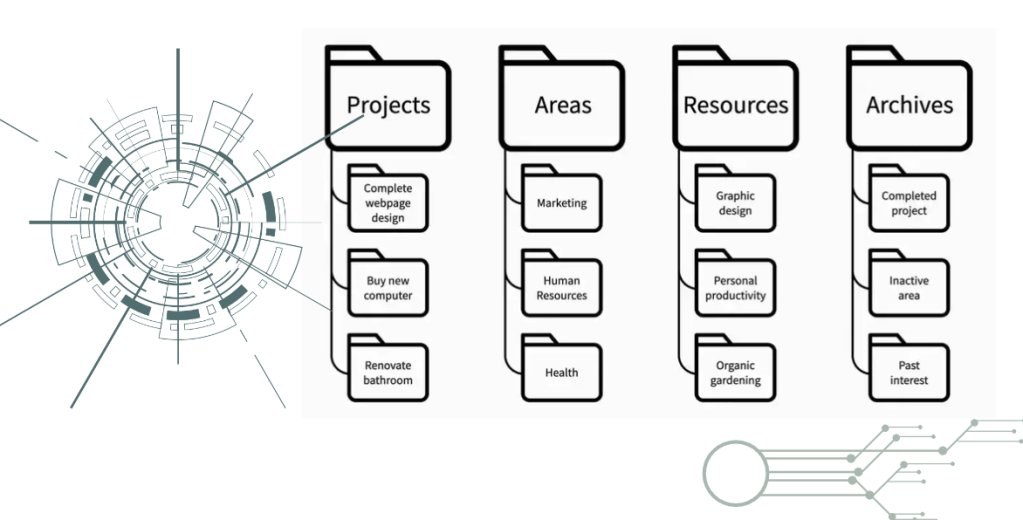
    • Organize – จัดเรียงข้อมูลตาม actionability เพื่อนำไปใช้งาน (PARA method)
    • Distill – จดโน้ตสรุป สกัดไอเดียสำคัญ สรุปใจความสำคัญออกมา
    • Express – แบ่งปัน แชร์สิ่งที่เราเรียนรู้มาให้กับผู้อื่น เพราะข้อมูลจะกลางเป็นความรู้ก็ต่อเมื่อเอามันไปใช้
    Source: Thiago Forte

    จาก Capture → Express คือการเดินทางที่เปลี่ยนตัวเองจาก consumer of information เป็น creator อย่างแท้จริง

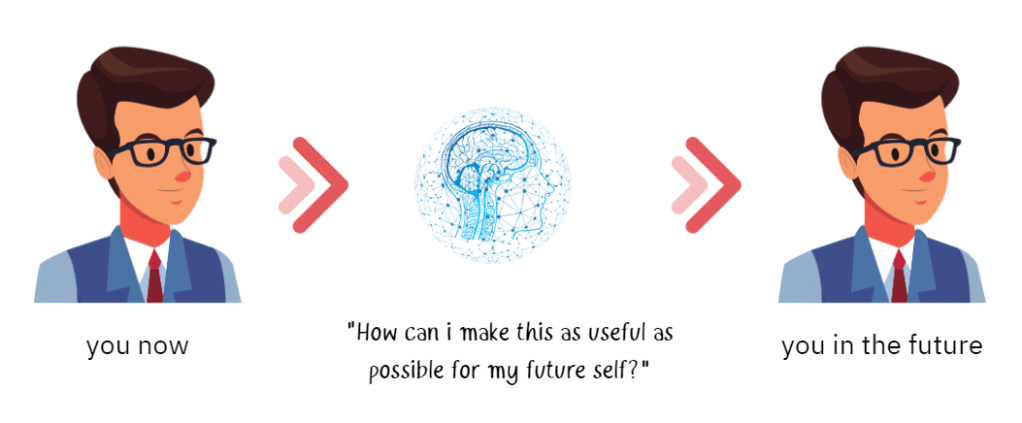
    เราสร้าง Second Brain ไว้ให้ใคร? ตัวเอาเองในอนาคต ตัวเราเองในอนาคตจะเป็นใครใช้ประโยชน์จาก Second Brain ที่เราสร้างไว้

    1. Capture

    ไม่ใช่ทุกข้อมูลที่มีจะมีประโยชน์เท่ากันหมด หน้าที่ของเราคือ capture เฉพาะส่วนที่มีประโยชน์กับเรา โดยเราจะต้องตอบคำถามเหล่านี้

    • Does it inspire me? มันสร้างแรงบันดาลใจให้เรารึป่าว?
    • Is it useful? มันมีประโยชน์กับเราไหม?
    • Is it personal? เป็นสิ่งที่เรากำลังคิด กำลังนึกรึป่าว? ตอบโจทย์เราไม่
    • Is it surprising? รู้สึกตื่นเต้น เซอร์ไพรส์ไหม?

    2. Organize

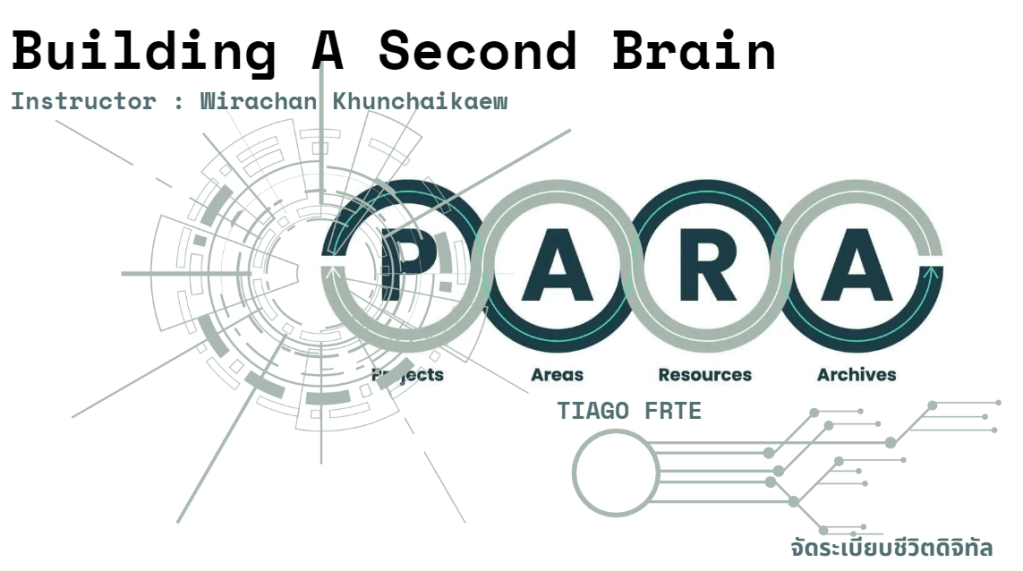
    Thiago ได้คิดค้นวิธีการจัดเก็บข้อมูลเป็น 4 หมวดหมู่ง่าย ๆ ชื่อว่า PARA method โดยเน้นที่การทำไปใช้ในชีวิตเราเป็นหลัก

    1. Project (โปรเจกต์): งานระยะสั้นทั้งเรื่องงานหรือชีวิตส่วนตัวที่ทำด้วยเป้าหมายบางอย่าง
    2. Area (หน้าที่): ความรับผิดชอบระยะยาวที่ต้องคอยเอาในใส่อย่างต่อเนื่อง
    3. Resource (ทรัพยากร): หัวข้อหรือความสนใจที่อาจมีประโยชน์ในอนาคต
    4. Archive (คลังเก็บ): ข้อมูลใน 3 หมวดข้างต้นที่ไม่ได้ใช้งานแล้ว

    3. Distill

    To attain knowledge, add things every day. To attain wisdom, remove things every day.

    — Lao Tzu, ancient Chinese philosopher

    “เพื่อครอบครองความรู้ เพิ่มสิ่งนั้นทุก ๆ วัน เพื่อครอบครองปัญญา ตัดสิ่งที่มีอยู่ออกทุก ๆ วัน”

    การที่เราอ่านหนังสือหรือบทความสิ่งที่จะช่วยให้เราจำได้ก็คือ “การกลั่นข้อมูลออกมาให้เป็นภาษาของเราเอง” หาแก่นความรู้ ย่อยไอเดียให้กลายเป็นภาษาของเราเอง

    Distill คือ การกลั่นสิ่งที่เราพบเจอ ออกมาเป็นคำพูดของตัวเอง ความรู้ต้องผ่านการย่อย ปรับแต่งเพื่อเปลี่ยนเป็น asset ที่มีคุณค่า

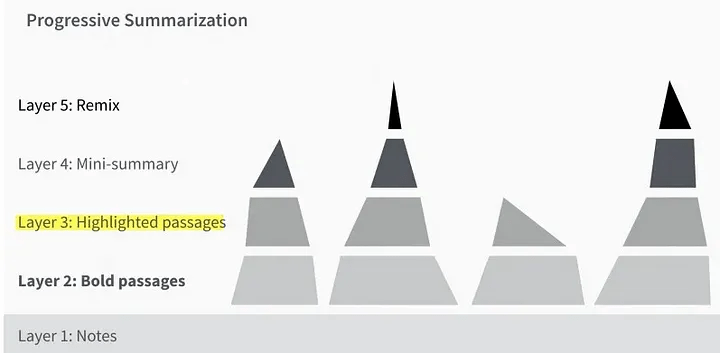
    วิธีการ Distill ก็คือการทำ “Progressive Summarization”

    • Layer 0: แหล่งที่มาของข้อมูลจากต้นฉบับ เช่น website หนังสือ บทความ
    • Layer 1: เนื้อหาส่วนสำคัญที่นำมาใส่โปรแกรมการจดบันทึกของเรา
    • Layer 2: ใส่ ตัวหนา กับเนื้อหาที่เราคิดว่าสำคัญ (เวลาที่กลับมาอ่านโน้ต)
    • Layer 3: คัดใจความสำคัญจาก ตัวหนา และใส่ Highlight
    • Layer 4: สรุปเป็นข้อ ๆด้วยคำพูดของเราเอง และเอาไว้บนสุดของโน้ต
    วัวกระทิง ของ Pablo Picasso

    4. Express

    คีย์หลักในการ express ก็คือ จดจำปะติดปะต่อเรื่องราว เขียนออกมาในภาษาของเรา สร้างระบบจัดการความรู้ที่ใช้งานง่าย ลดความซ้ำซ้อน

    Express คือ การที่เราไม่รอจนให้ทุกอย่างให้พร้อมก่อนที่แชร์สิ่งที่คุณรู้ให้ผู้อื่น แชร์ออกไปบ่อยขึ้น แม้เป็นเรื่องเล็ก ๆ เพื่อได้รับ feedbacks หรือมุมมองอื่น ๆมาพัฒนาความคิดเราต่อไป

    Intermediate Packets

    โน้ตที่เราจะเอาไปจด blog มันไม่ควรจะยาวมาก มันควรจะสั้น ผ่านการกลั่นกรองมาแล้ว

    Thinking Small จะมาจากหลายๆ ศาสตร์ การจะลงมือทำงานชิ้นใหญ่ ๆ มันเกิดมาจากที่เราเอาส่วนเล็กๆ มาประกอบร่างกัน และการจดโน้ตไม่จำเป็นต้องสมบูรณ์เฟอร์เฟ็ก

    ทุกอาชีพมักจะมี “กระบวนการ” ก่อนที่จะสร้างสรรค์ผลงานออกมา เห็นได้ว่ามี “Prototype” เวลาสร้าง Product, “Demo” เพลงของศิลปิน

    สรุปการฝึก Express บ่อย ๆ ในรูปของ Intermediate Packets ช่วยเพิ่ม Productivity โดยรวมของเราในตอนนี้ และอนาคตได้ด้วย เหมือนกับการสร้างตึกที่เรามี ฐานที่แข็งแรง เป็นการค่อย ๆสะสม Knowledge Assets ที่พร้อมใช้งานทุกเมื่อนั่นเอง

    Thiago Forte ผู้เขียนหนังสือเล่มนี้ได้ทำให้เห็นว่าการทำ Personal Knowledge Management หรือการจัดทำระบบจัดการความรู้ของตัวเรา มันเจ๋งมาก ทั้งช่วยให้เราจำข้อมูลสำคัญได้ เชื่อมต่อความคิดจนเกิดเป็นไอเดียใหม่ ๆ และการสร้างผลงานสู่โลกภายนอก

    เราจะสร้าง Second Brain ของตัวเองอย่างไร?

    Second Brain คือระบบหรือ system ไม่ใช่แค่ software ตัวใดตัวหนึ่ง แต่เกิดจากการใช้หลายๆเครื่องมือร่วมกัน หลัก ๆ จะมี 4 apps

    • Calendar
    • To-Do
    • Note
    • Read-Later App

    หลายคนเข้าใจผิดว่าใช้แค่ notetaking app อย่าง Notion แค่แอปเดียวก็สร้าง second brain ได้แล้วไม่ใช่นะครับ ในการสร้าง Second Brain เราจำเป็นจะต้องประยุกต์แอปหลาย ๆ

    เตรียมพบกับ เทคนิค และวิธีการใช้งาน Notion...